The research problem
A filename such as final_v3 says that something changed, but not what changed, why it changed or whether it produced the result used in a paper. Overwriting removes evidence; uncontrolled copies remove clarity.
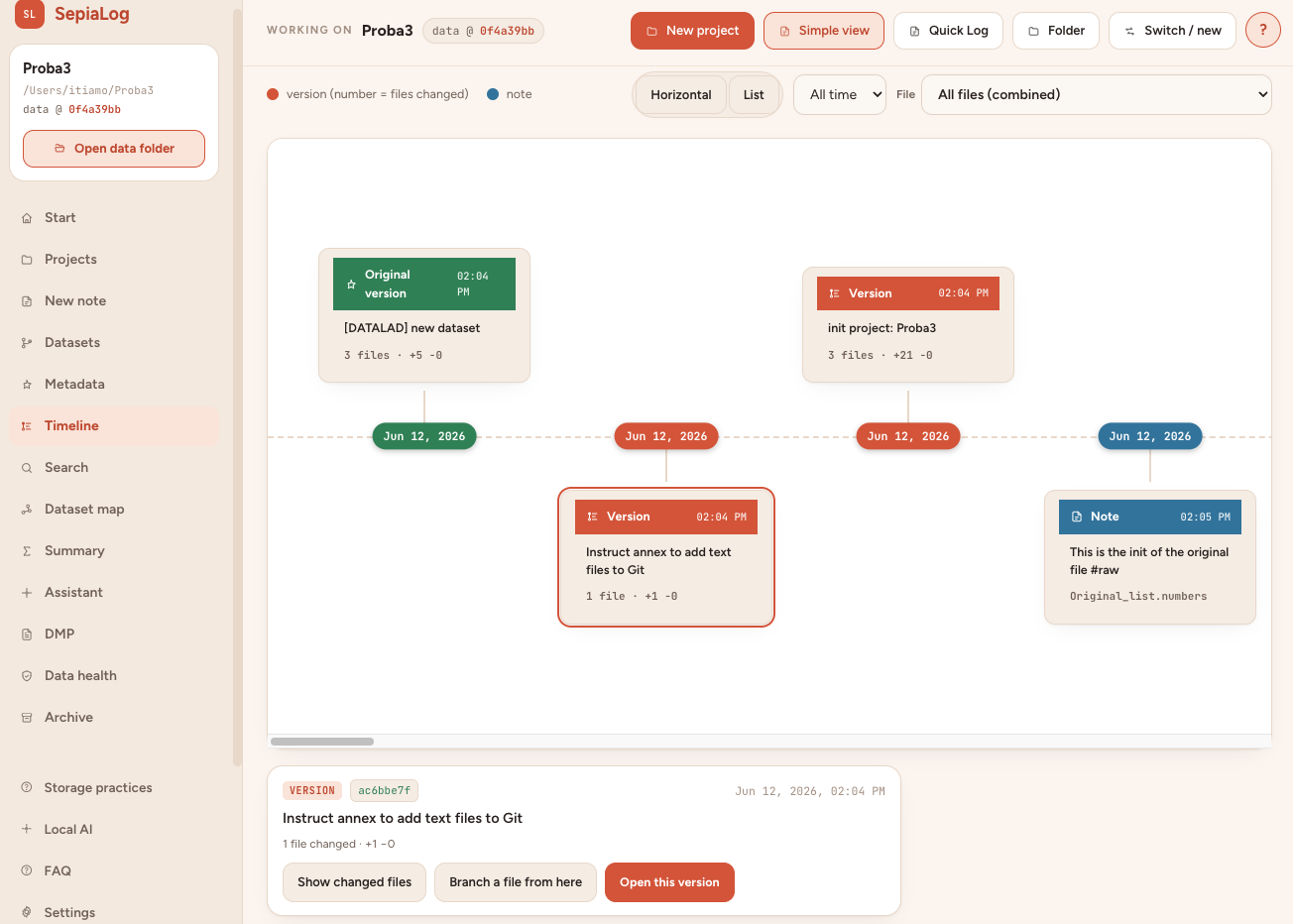
How the workflow works
- Work in the project folder as usual.
- Save a SepiaLog note after a meaningful change.
- Use the Timeline to inspect a version or open the data as it was when the note was created.
What SepiaLog provides
- Built-in snapshots on every supported desktop system
- Timeline grouped by day
- Read-only inspection of historical file states
- Optional Git and DataLad interoperability for advanced workflows
Common questions
Do I need Git to use version history?
No. Built-in snapshots work without Git. Git and DataLad are optional for advanced interoperability.
Does opening an old version overwrite current data?
No. Historical states are opened read-only so the live project remains untouched.
Can I branch from an older version?
Yes. A historical file state can be used as the source for a new derived dataset.